
Listed here are some troubleshooting steps you can follow if one or more of your members have issues logging in to your Hub.
Don't worry! If any of these steps seem a little too complicated, just contact us at help@membership.io, and we'll be more than happy to lend a hand! 🤓
Solution #1 – Check their login credentials
Most cases can be resolved by making sure that the correct email is being used.
Ask your members what email they are using to log into the Hub. Then compare that email with the email that is listed in their profile in your Contacts list. This way, we can ensure that they are using the correct email associated with their profile.
To find their email, select the member from your Contacts, click Person Details, and then Profile.
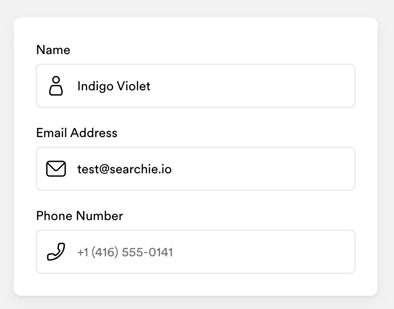
You can edit this email if needed, save your changes, and then ask your member to try logging in again with the email associated with their profile.
Solution #2 – Ask the member to reset their password
If the email is correct and they are still having some trouble, direct them to try resetting their password from the Hub login screen.
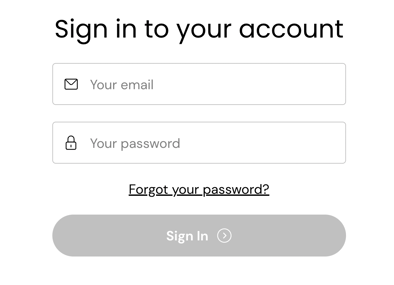
If their email and password have been verified (no red error messages upon trying to log in) and your member still cannot access the Hub, we can move on to the next step.
Solution #3 – Generate a temporary password (Admin only)
If your member still can’t get into the Hub because they aren’t receiving the password reset email, you can generate a temporary password directly in your Membership.io account. This password is auto-generated, secure, and forces the member to create a new password immediately after logging in.
From your Membership.io Hub preview page, click Members > All Members. Use the search bar to find the member by name or email.
On the far right side of their row, click the three-dot menu (⋯) and choose Select Generate Temporary Password.
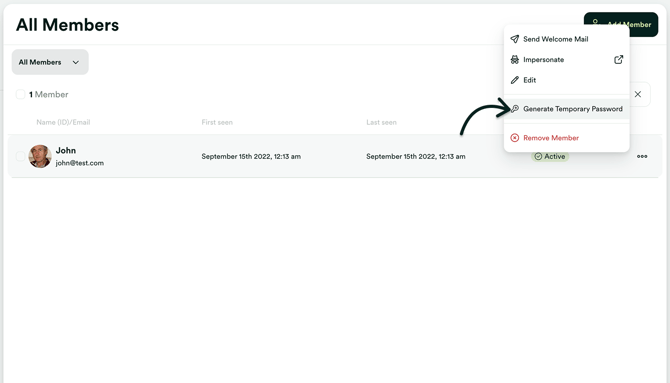
Click Generate on the dialog box that appears.
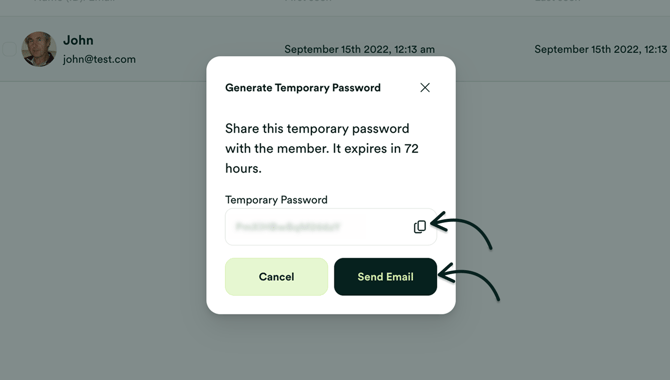
A blurred temporary password will be generated for you. From here, you can:
- click the 📋 Copy Password icon to copy it and send it to your member manually, or
- click Send Email to automatically open your mail app with a drafted message titled: “Your temporary <Hub Name> password”
Solution #4 – Check Payment Status
This step only applies if your members have to pay for access to the Hub. If your member can't log in and it has been proven that they are using the correct account information, it may be their payment status that is causing the issue.
Access your customer list in Stripe to check whether your member has an active subscription.
Feel free to reach out to us if you need some extra help with this part!
Solution #5 – Reach out for help
If you have followed these steps and your member is still not having any luck logging into your hub, reach out to us at help@membership.io, and we will straighten things out for you! 💪