
You can change your file's thumbnail inside the File Manager,either in your Library or your Hub.
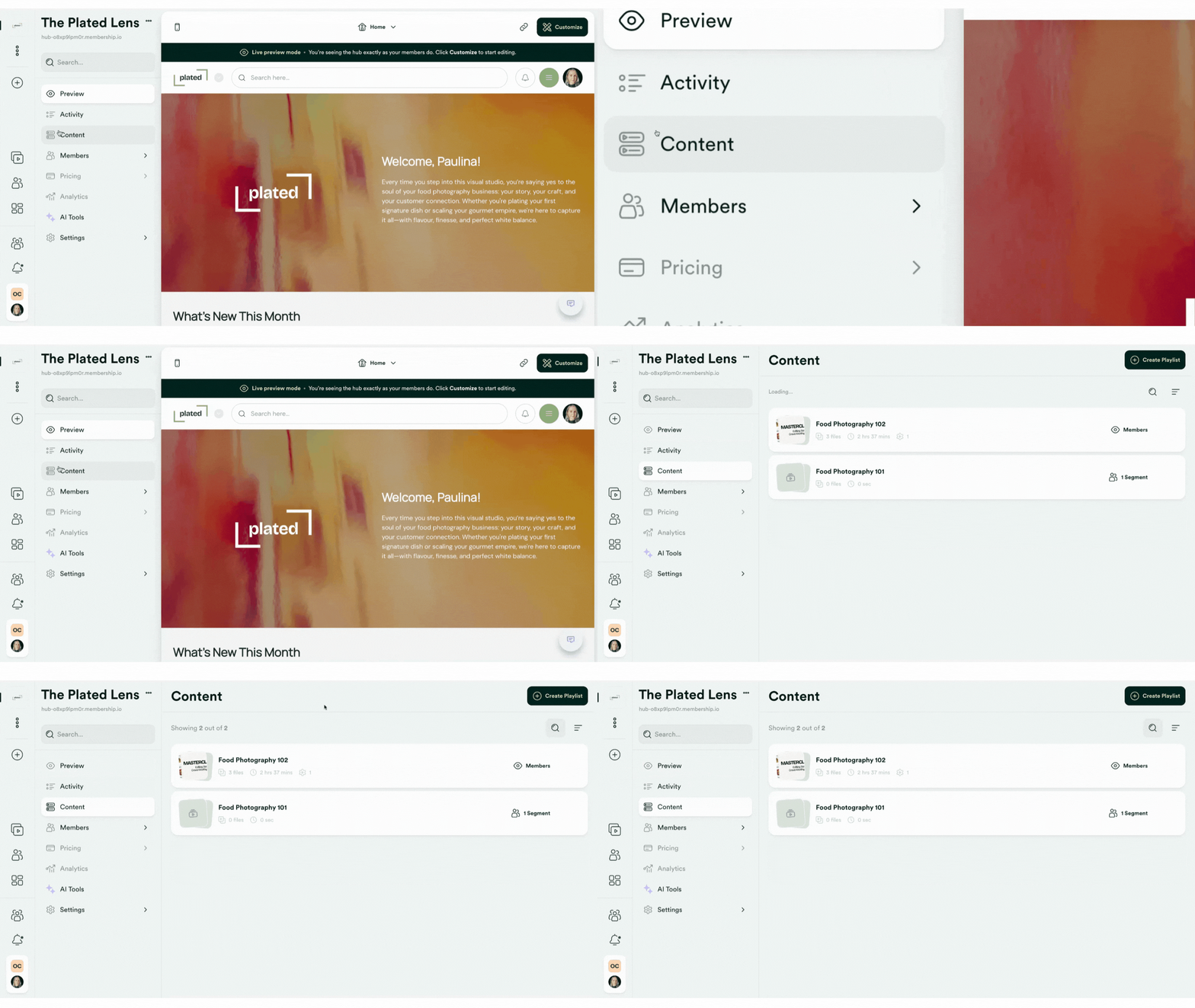
Step 1 - open your content tab
Open your Hub's Content tab to locate your file or playlist.
Step 2 - change the thumbnail
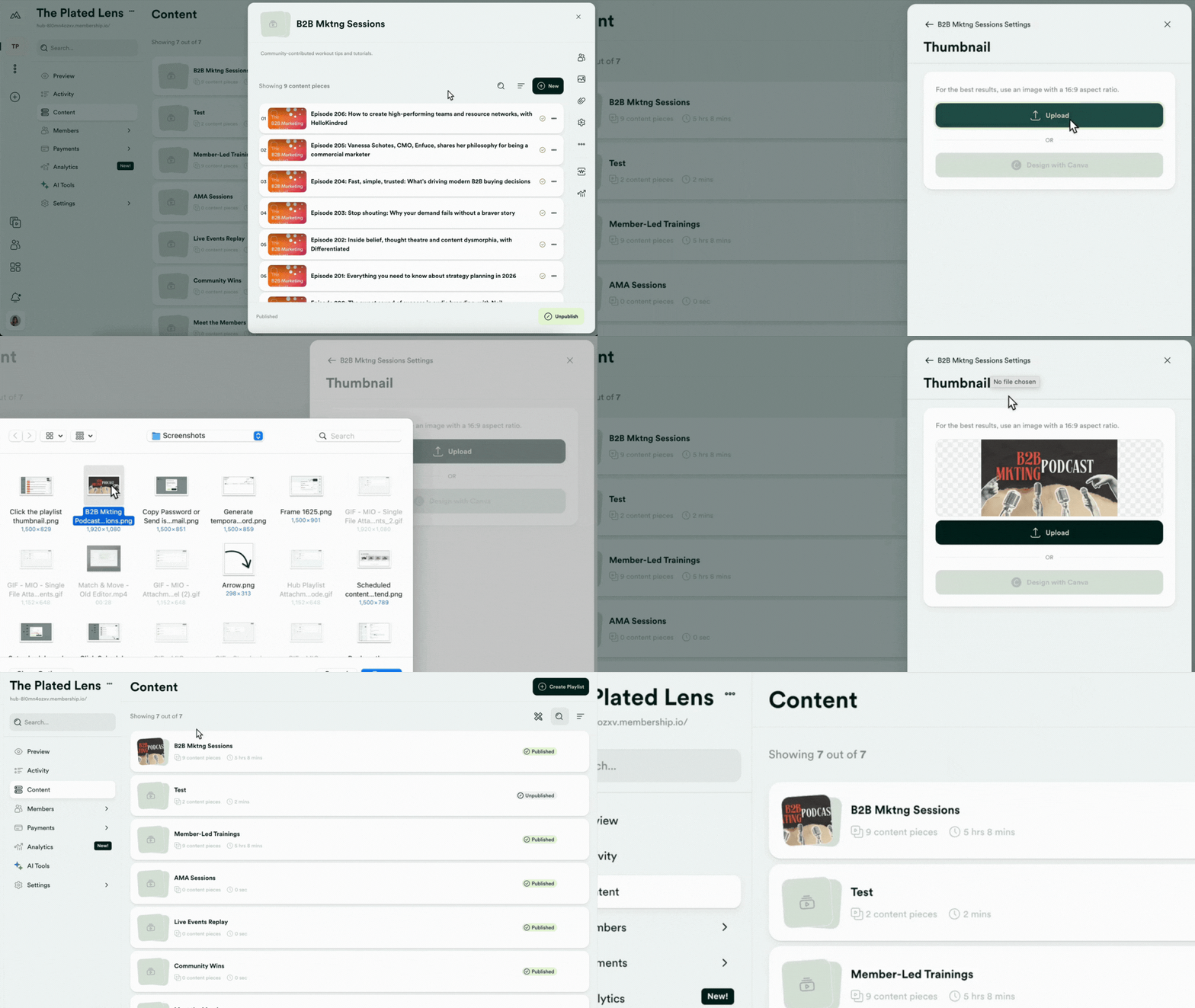
Playlist
Click on the Playlist to open it. Once inside, click the Thumbnail icon on the right pane to change the thumbnail. Click ⬆️ Upload and select the image saved on your device to upload.
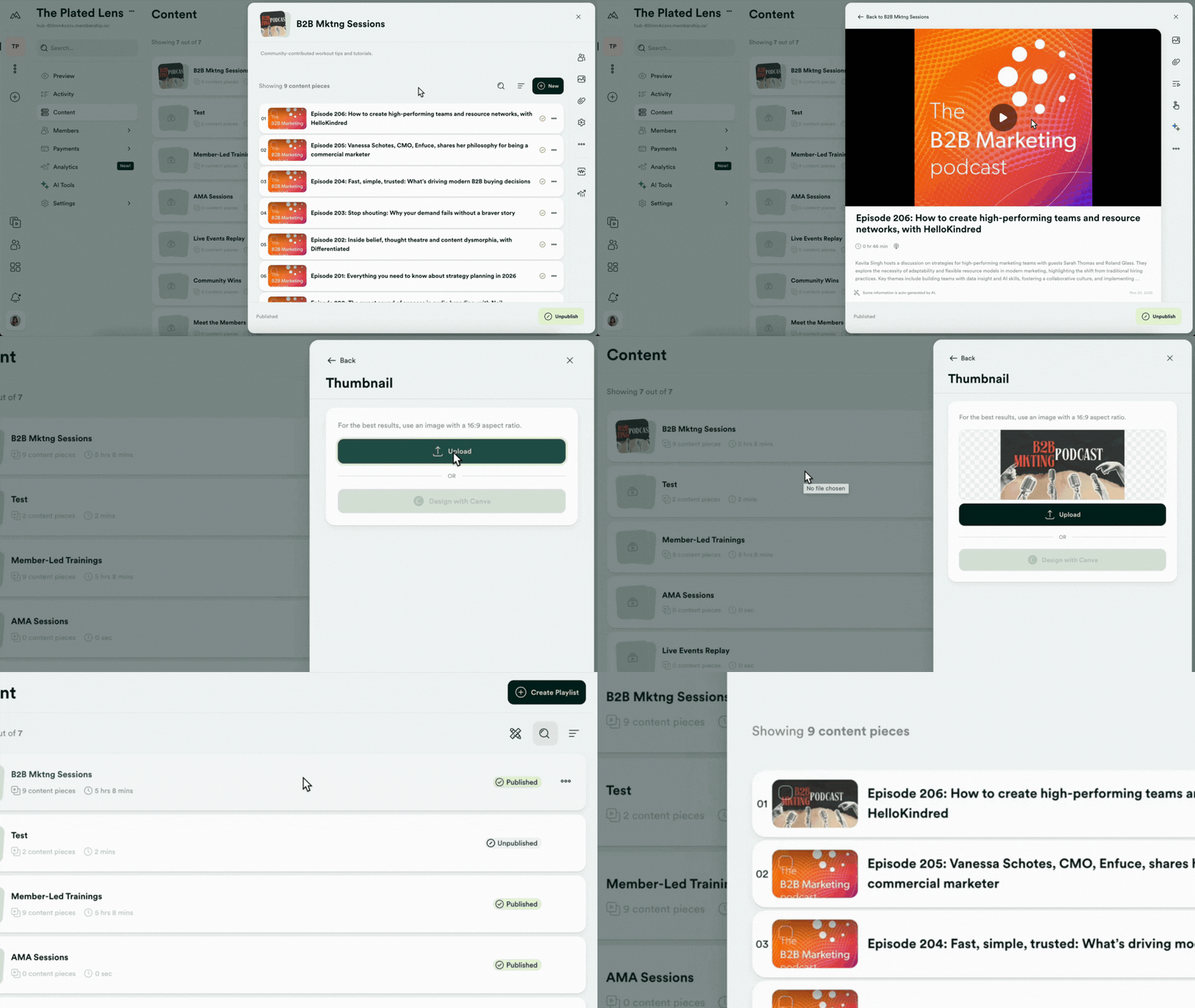
File
Click on the file to open the File Manager. Once inside the File Manager, click the Thumbnail image to change the thumbnail image of your media file. Click ⬆️ Upload and select the image saved on your device to upload.
TIPS
- Upload an image that’s at least 1280 x 720 pixels (16:9 aspect ratio).
- Avoid uploading a thumbnail with special characters (such as %, $, #, @) in it's name.