
You can now choose from multiple aspect ratios when adding video elements to your custom Hub section layouts. This gives you finer control over spacing, video orientation, and how your video content appears to your members.
Step 1 – Add a new Custom Layout Section
Inside your Hub editor, start by clicking the (+) icon where you want to add a new section layout.
Then, choose between Columns or Sidebars for your custom layout.
Step 2 – Select the video file
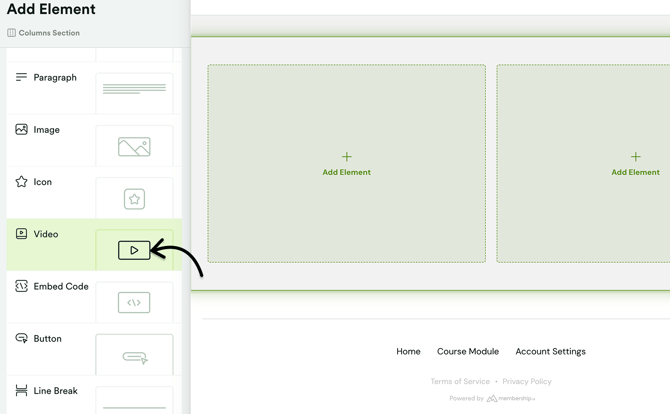
Click + Add Element > Video.
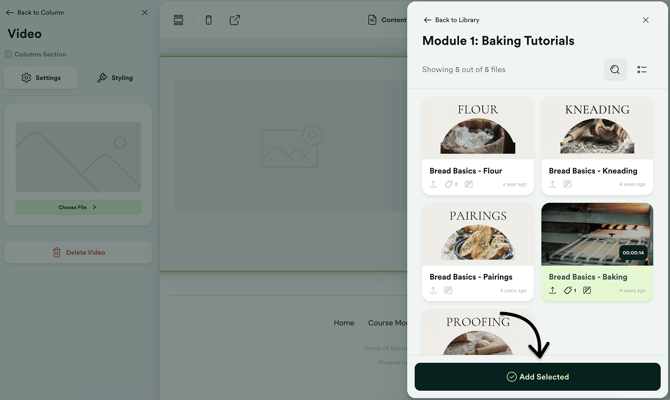
Choose your file from your Library folders and click ✔️ Add Selected.
Step 3 – Adjust the video orientation
Once added, click the Styling tab next to Settings. Under Card Aspect Ratio, select the format you want: 16:9 (landscape), 9:16 (portrait), or 1:1 (square). The preview section will update instantly, so you can check what each option looks like.
IMPORTANT: This setting updates the video’s orientation in your Hub, not just its appearance within this specific layout.
From here, you can fine-tune additional styling options and refine your video design to match your Hub’s look and feel.