
You can turn any Membership.io Library Playlist into a private RSS feed so you can listen in popular podcast apps or other feed readers. It’s a fast way to create a podcast-style listening experience from content you’ve already organized in a playlist.
Before you begin
To generate an RSS feed, your Playlist must be a Library Playlist, because it is designed for sharing and external distribution.
If your Playlist currently lives in a Hub, you’ll need to export it to your Library first:
- Locate the playlist in your Hub's Content tab.
- Click the three-dot menu > Export to Global Library.
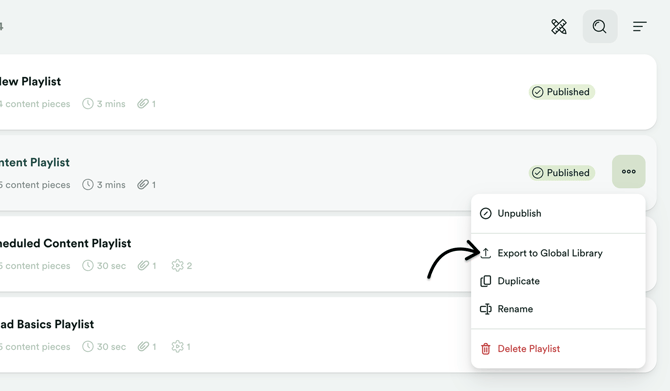
- Rename the Playlist if needed, then click Export.
Once exported, continue with the steps below.
Generate the RSS feed
Step 1 – Select your Library Playlist
Go to the Library tab in your Membership.io account to access your global content and playlists.
Locate and open the Library Playlist you want to convert into a feed.
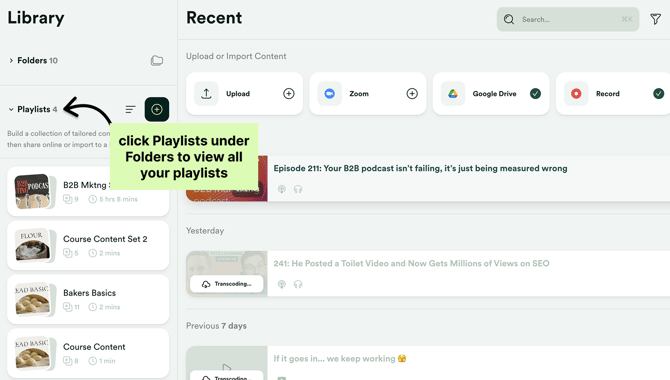
Step 2 – Open the sharing options
Once inside your Playlist, click the Share button and select Listen.
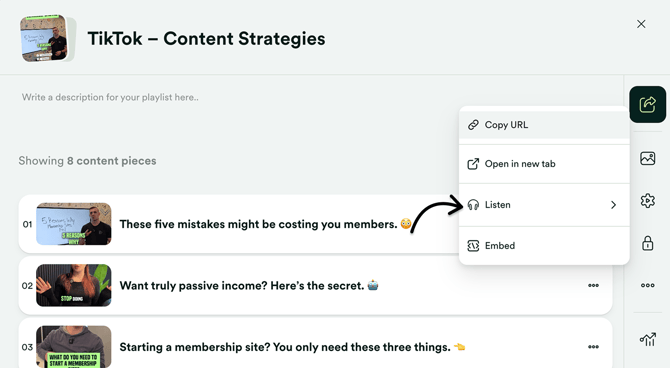
This opens the feed and podcast sharing options for the Playlist.
Step 3 – Choose how to use the feed
Option A – Launch a podcast app automatically
Choose between Apple Podcast or Overcast. The feed URL is automatically copied.
Paste the link into your browser to open the podcast app, and continue from there.
Option B – Add the RSS feed manually
Copy the RSS Feed URL from the dropdown menu.
Open your preferred podcast app and find the option to add a podcast feed by URL (e.g., in Apple Podcast, go to File > Follow a Show by URL).
Paste the RSS Feed URL, then click Follow to add the podcast.
How the feed works
- The RSS feed automatically updates when you edit or add content to the Playlist.
- The feed is intended for private listening and cannot be submitted for public podcast distribution. To publish publicly, upload your content to a dedicated podcast hosting service.