
🧰 What You Will Need:
- A mobile phone or tablet with a modern browser (Chrome or Safari recommended)
- Your Hub URL
Learn how you can access your Hub in full desktop mode on a phone or tablet.
Step 1 – Open your Hub on mobile
Access your Hub through your mobile browser as you normally would.
Step 2 – Use Force Desktop View
You'll land on your Hub's preview page. From here:
-
Tap your email address at the top of the page.
-
Select Force Desktop View from the dropdown menu.
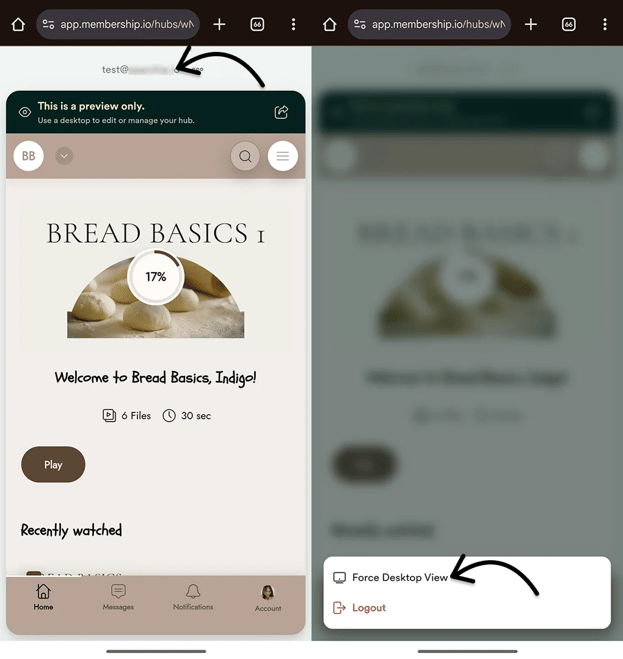
The page will reload in full desktop mode. This is the most reliable way to view your Hub in desktop mode on mobile, as it works directly within the app itself, not just in your browser.
Alternative: Use your browser’s desktop site option
Alternatively, you can also use the built-in desktop view options available in most mobile browsers.
-
Safari (iOS):
-
Open your Hub in Safari.
-
Go to Page settings > three-dot menu located in the address bar.
- Scroll to and tap Request Desktop Website to enable it.
-
-
Chrome (Android):
-
Open your Hub in Chrome.
-
Tap the browser menu (three dots).
-
Select Desktop site.
-
NOTE: Browser interfaces may vary depending on your device type and OS version.