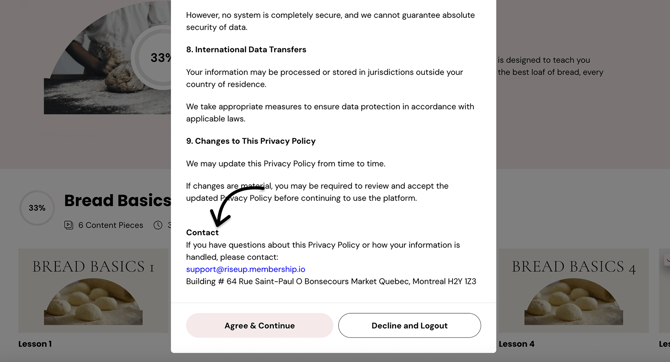
Your Hub allows you to require members to agree to your legal policies and display contact information directly within your Terms of Service and Privacy Policy.
These settings help you:
- Require new and existing members to agree to your Terms of Service and Privacy Policy
- Personalize your policies
- Add contact information for support or business inquiries
This guide explains how to configure your Hub’s legal settings.
What can I use this for?
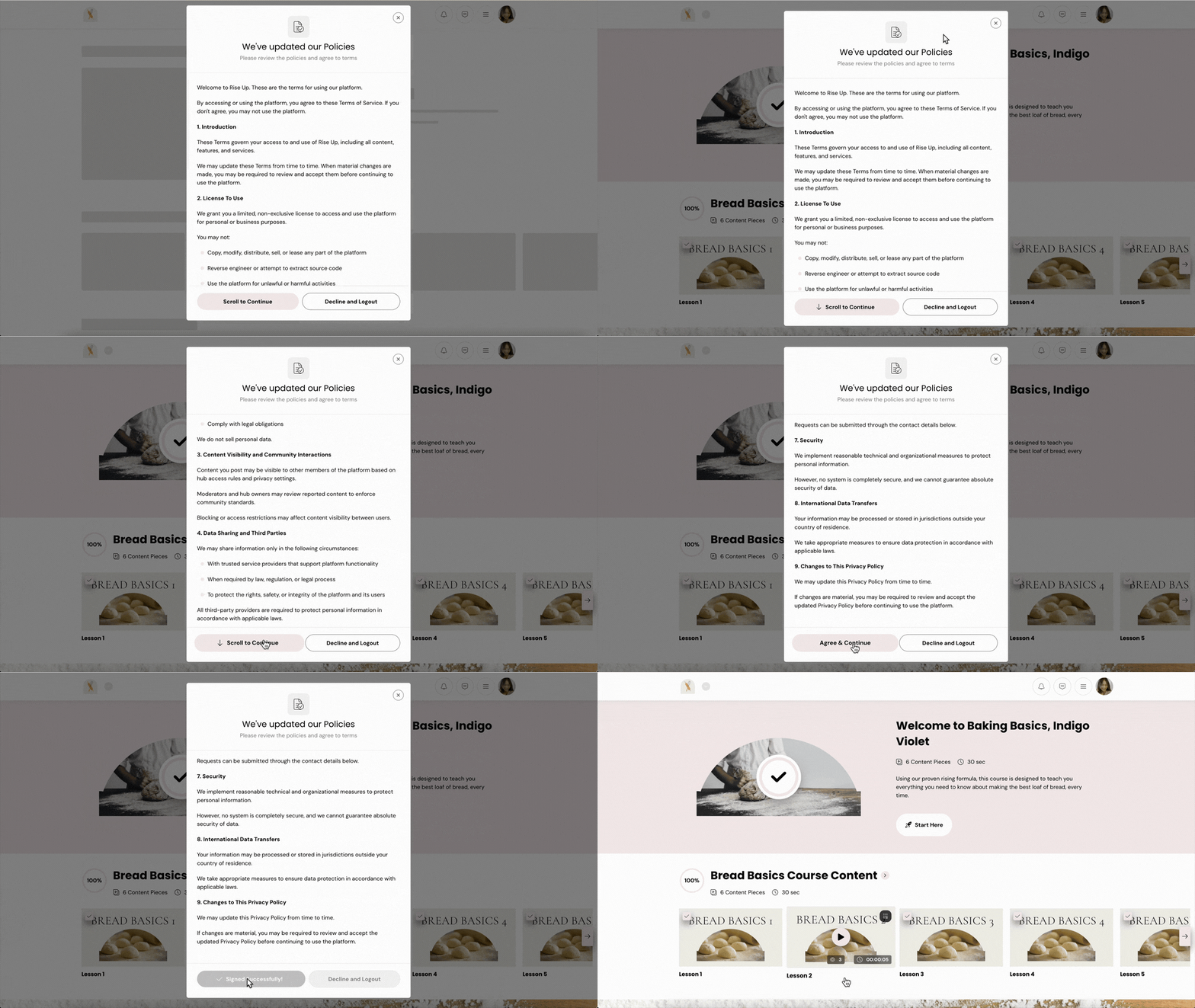
When enabled, new and existing members will be prompted to accept your Terms of Service and Privacy Policy:
- During onboarding
- After policy updates
If enabled, your policies will also appear in the Hub footer.
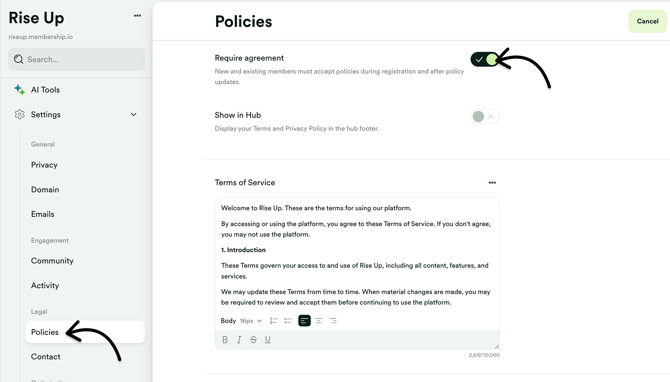
Step 1 – Require policy agreement
In your Hub Dashboard, click Settings > Policies, and enable "Require agreement."
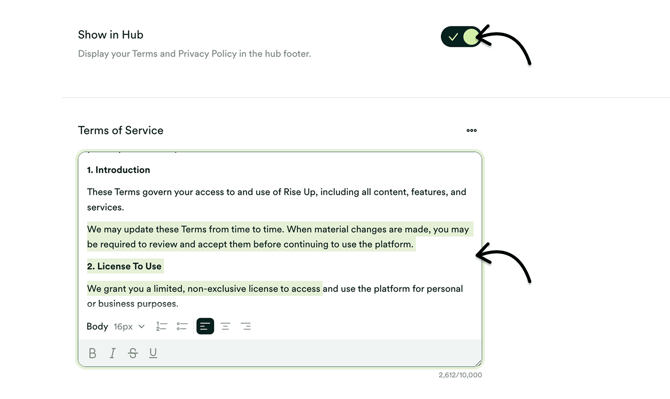
Step 2 – Customize your policies
Once enabled, you can customize your Terms of Service and Privacy Policy directly in their dedicated text editors to match your specific needs.
These policies will also be accessible via the Hub footer if "Show in Hub" is enabled.
Step 3 – Add Contact details
You can set the contact details your members will see if they need to reach the Hub owner or support.
From your Hub Dashboard > Legal setting, click Contact and enter the following:
-
Support email address (e.g., support@yourdomain.com)
-
Business address (if applicable)
This information appears at the bottom of the Terms of Service and Privacy Policy windows.