
Push notifications help you keep members updated and engaged through your Mio mobile app. Once your app is live, push notifications are enabled by default. Some notifications are sent automatically based on activity in your Hub, while you can also send notifications manually.
Automatic push notifications
Automatic push notifications are triggered by community activity, i.e., mentions, replies, posts, comments, direct messages (DMs), and any achievements set up in the Hub.
💡TIP: When creating a Community post, select the Broadcast option to send a push notification for the post automatically.
Send a manual push notification
You can manually send a push notification to all Hub members or a specific segment.
Step 1 – Open Send Notification
From the Hub preview screen, go to Members > Send Notification.
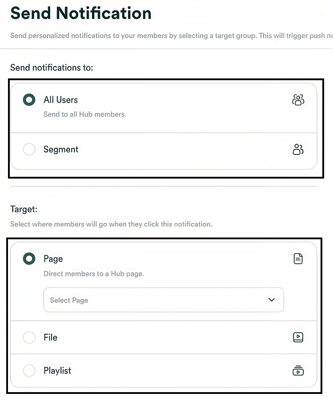
Step 2 – Choose your audience and set a target
Choose who should receive the notification:
- All Users
-
Segment
Next, select where members should be taken in your app when they tap the notification:
- Page
- File
- Playlist
Every push notification must have a target. If your Hub doesn't have a Community, you can use the Home page as the target.
Step 4 – Configure your notification message and schedule
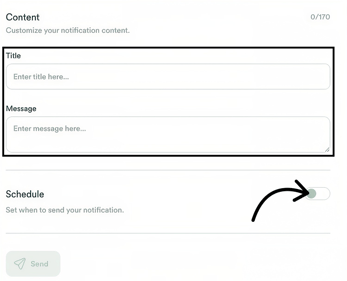
Enter the Title and Message for the push notification.
To send the notification immediately, leave scheduling turned off and send the notification.
To send it later, turn on the Schedule option and choose when you want the notification to be sent.
Please note that there's currently no dashboard for viewing or managing scheduled push notifications after they have been scheduled.
IMPORTANT: Be mindful of consent when sending marketing or sales-related push notifications. Sending these notifications without explicit user consent may conflict with Apple's terms.