
Community Moderation allows you to review reported content, remove posts, and manage banned members within your Hub.
Moderation is available to Hub Owners and Moderators, and those assigned to manage a Membership.io account (a.k.a. Team Member accounts).
This guide explains how to use the Moderation panel.
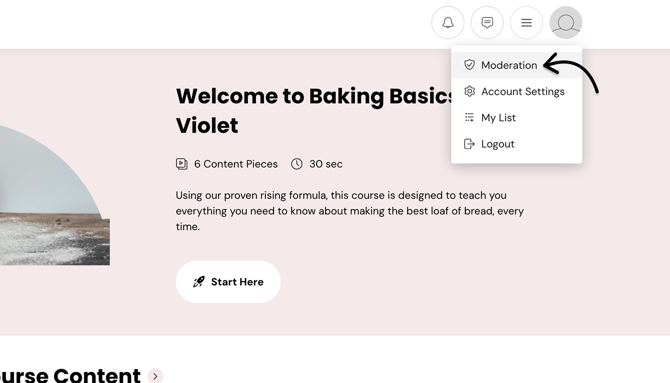
Step 1 – Access the Moderation panel
To access the Moderation panel, navigate to your Hub profile and select Moderation.
Step 2 – Manage items subject to moderation
At the top of the page, you’ll see three tabs. You can use these to monitor flagged content, track removed posts, and manage banned members.
-
Reports – Displays posts and comments flagged by members for review. Review the content and decide whether to remove it.
-
Removed – Shows reported content that has been removed through moderation. (Posts must be reported first to appear here.)
-
Banned Members – Lists members who have been banned from the community. Banned members cannot post or comment, but their previous posts remain visible unless removed.
NOTE:
-
Simply deleting a post does not move it to the "Removed" tab
- Only reported posts are eligible for review within Moderation
- Banned members can't send direct messages to other users (they won't see the DMs icon)