
What is My List
My List lets members save videos to return to later. Use it to bookmark content, build a personal watchlist, and easily find saved videos whenever you need them.
How to save a video to My List
You can save a video in either of the following ways:
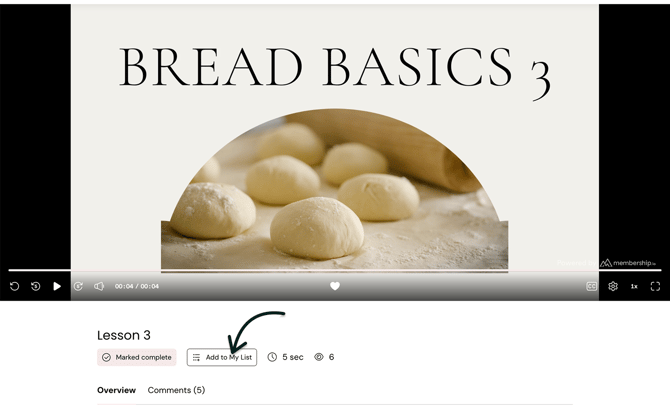
From the video player:
Open the video you want to save. Click Add to My List below the video.
From the main Playlist page:
Find the video you want to save. Hover over the video to reveal the Add to My List option.
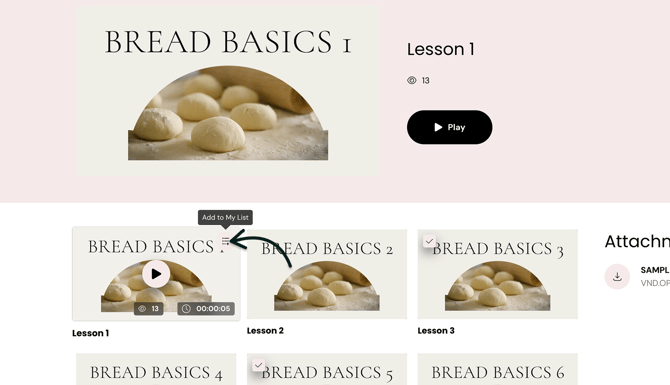
Click the option to save the video.
Where to find your saved videos
You can access your saved videos anytime from your Hub.
Click your profile icon in the top navigation. Select My List from the dropdown menu.
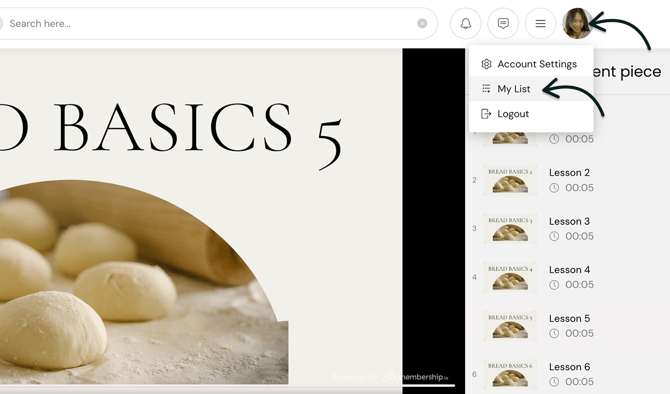
Your saved videos will appear in My List, allowing you to return to them whenever you want.
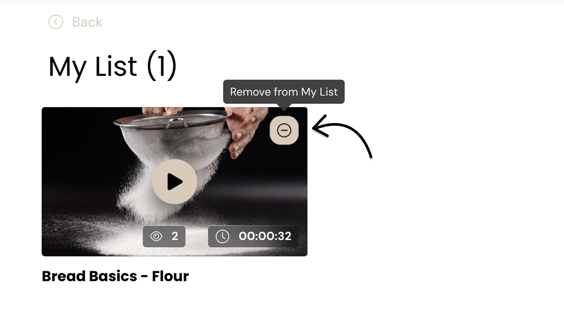
How to Remove saved video from My List
To remove a saved video from My List, hover over a video and click the menu button > (–) Remove from My List.
How to hide or show the Like button
The Like button appears as a heart icon inside the video player. Although members can see the icon, it does not currently perform an action. It is reserved for a future Liked Videos feature.
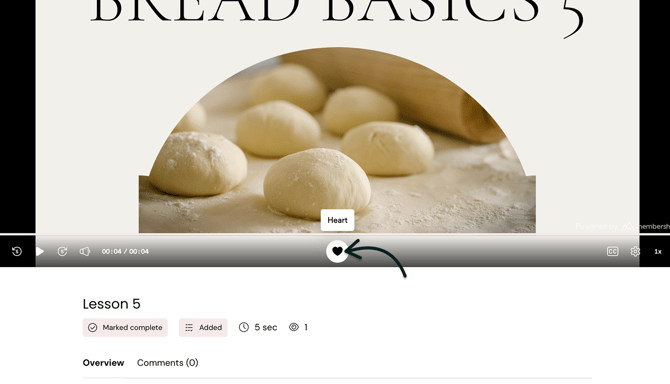
If you prefer not to display the Like button in your Hub, you can hide it through your Player settings.
Go to Profile > Settings > Player.
Open the Privacy tab. Under Feedback, toggle the Like button switch On or Off.