
What can I use this for?
Membership.io lets you control how links open in your Hub. Use the Open in new tab setting to choose whether a linked page opens in the same browser tab or a new one.
This setting is available for navigation menu items and buttons within applicable Hub sections.
Set how a navigation item opens
Step 1 – Open the Header menu items
If you haven't already, please set up and update your Hub menu items from this help article: Update your Hub's menu items.
Step 2 – Edit the menu item
In the Hub menu items editor, click the menu item (e.g., Resources), confirm the Menu Item Type, and choose whether to enable or disable Open in new tab.
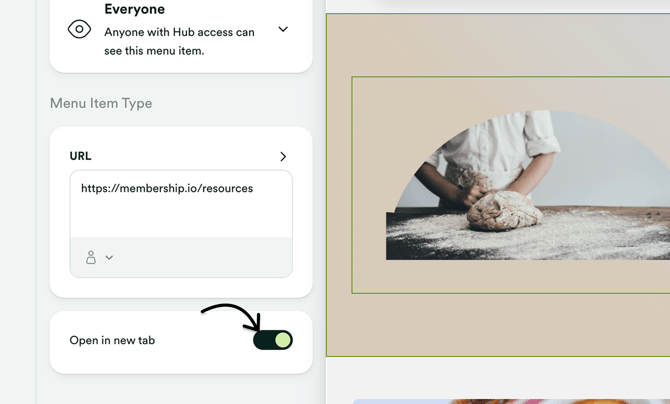
Turn the setting On to open the linked resource in a new browser tab, or Off to open it in the current tab.
Set how a button opens
Step 1 – Choose the section containing the button
In the Hub Editor, select the section containing the button. Click on the button to open its settings.
Step 2 – Update the Open in new tab setting
Scroll down to "Open in new tab" and choose whether to turn it on or off for the button.
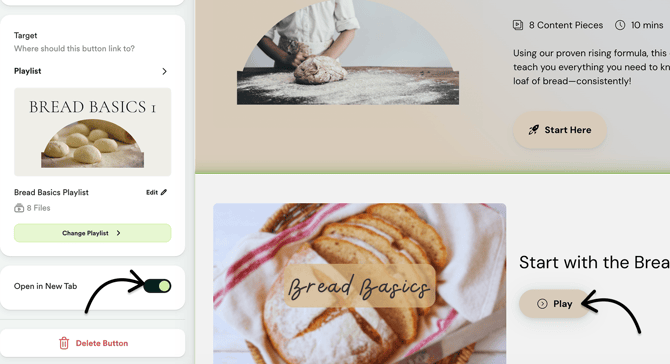
Turn the setting On to open the linked resource in a new browser tab, or Off to open it in the current tab.
TIP: Use Open in new tab based on how you want members to navigate your Hub. Turn it off for a more continuous browsing experience within the same tab, or turn it on when you want members to keep the original page open.