
NOTE: Legacy plans (Basic, Pro, Business) don’t include the AI Chat Plugin. To use AI Chat on these plans, you’ll need to add the Wisdom add-on.
What is the AI Chat?
The AI Chat Plugin allows you to create an AI chat trained on your content. Unlike ChatGPT, the Membership.io AI Chat Plugin is trained on your content. You can also choose to show references to your members, which will take them to the exact place in a source where a specific answer was pulled.
You can train your AI Chat content using your Library files and sitemaps from public web pages. Refer to Can I train my AI Chat Plugin (Wisdom) on my website, blog, podcast, etc? for more information.
Start creating your own AI chat by:
- 🎥 Adding the content you want to train the AI chat on.
- ⚡ Heading to the AI Chat app inside your Apps page to start building out your chatbot.
- 🌎 Adding your AI Chat either to a Hub or embedding it on a third-party site.
Step 1 - Create your plugin
Head over to your Apps page in your Membership.io account and click on AI Chat to create a new plugin. Give it a name, then click on your new widget to build it. 🛠
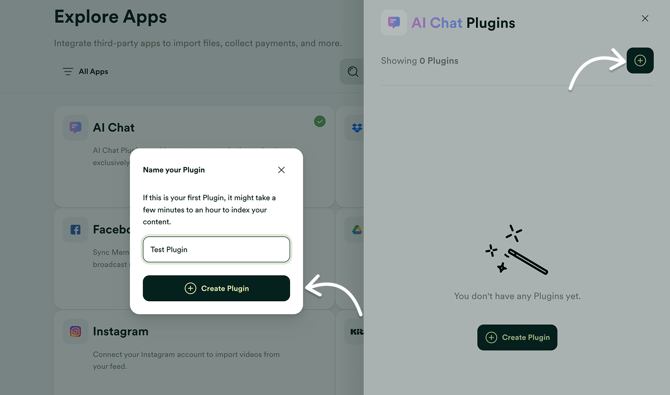
Step 2 - Select what Folders your AI Chat will be trained on
Is my content secure when using the AI Chat Plugin?
Yes! Your content remains secure. The AI Chat Plugin processes your data within your system. While some data is temporarily processed by OpenAI for functionality, they adhere to a strict 30-day retention policy and do not use your data for training or make it publicly available.
Inside your newly created plugin, use the ⚙️Settings tab to set up and populate the content and copy attached to your plugin. Any changes made can be seen in the AI Chat plugin on the right.
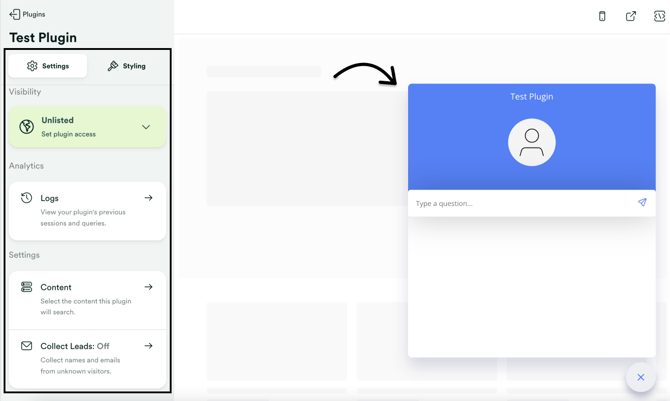
Open the Content menu to add the content you want your AI Chat plugin to pull from. This is the content the AI Chat will use as its "brain" to generate its responses, so it is important to consider what Folders you select.
If no specific folders are selected, the AI Chat will search through your entire Library to generate responses.
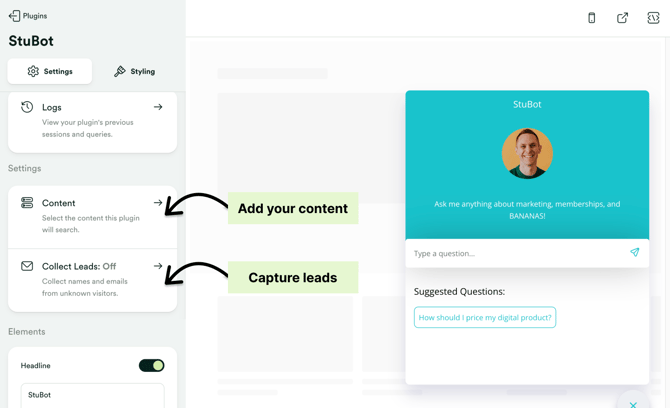
You can also collect the names and emails of visitors interacting with your AI Chat. Click on the Collect Leads option or check this article for more information.
Step 3 - Configure your AI Chat text and suggested questions
Under the Elements section, you can add a Headline, Profile Image, and Description.
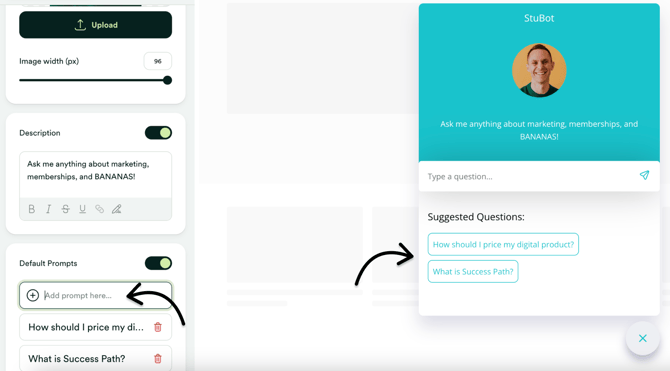
The Default Prompts are intended to jumpstart your members' interaction with the AI Chat. This is where you can list any common questions asked by your members that your content is meant to answer. Any Default Prompts will appear as Suggested Questions as pictured below.
Step 4 - Finalize your AI Chat's styling (appearance)
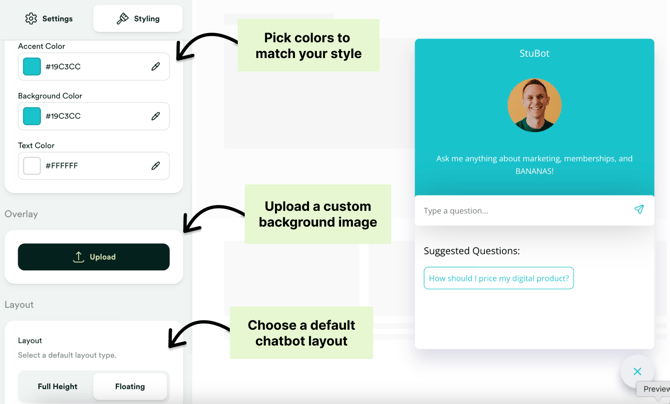
Toggle to the Styling menu to customize how the AI Chat plugin itself appears and what colors are used. The preview on the right will show what it will look like after making changes.
- Under Colors you can select an accent color for the icons that appear, a background colour for the top, and a text colour for the top.
- Under Overlay you can select a custom background image.
- Under Layout you can select a layout type (floating or full-height) along with the alignment and the icon that appears when the plugin is closed.
From there, you can configure some additional text-based elements:
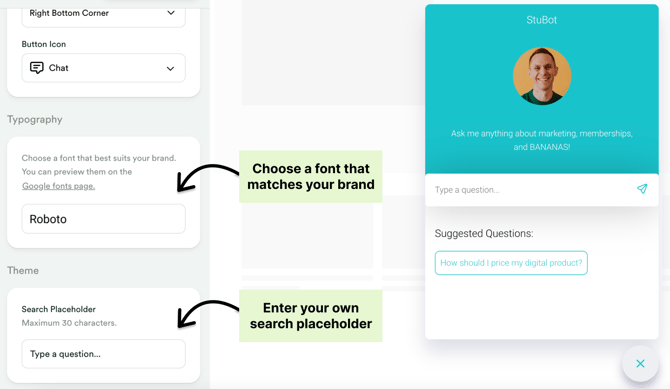
- Under Typography you can select a font that best suits your brand.
- Under Theme you can include a custom search placeholder message. The default is "Type a question..." which you can change to something that might resonate better with you and your members.
Step 5 - Try it out 🎨
Enter a prompt into the plugin to watch your new AI Chat work its magic. 🪄
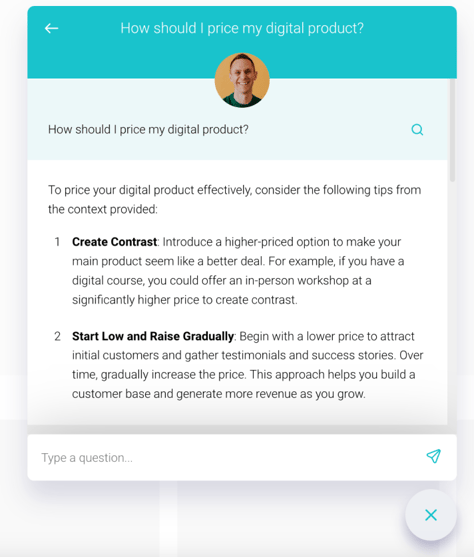
To help improve the chat's accuracy, we encourage you to submit feedback by clicking the 👍 or 👎 below and leaving a quick note to audit how accurate each AI-generated answer was.
Step 6 - Share your plugin with your Members
You have two ways to share your new AI Chat plugin with your members:
- Add your new AI Chat to any Hub.
Enable Wisdom inside any Hub to share it with your Hub members. You can find more information on how to enable your Chat plugin inside a Hub here. - Embed your plugin into any website.
Paste the embed code found on the top-right menu of your plugin inside an HTML section. - Share the direct link to your plugin.
Copy the Share link from the top-right menu of your plugin and paste it into a message for your members. This will open your plugin to a new page for your members. 😊