
An increasing number of accounts are being moved to Player V2, a newer version of the video player. The player itself looks and plays the same either way, but the page you use to configure it is not. Most of the controls covered in Customize your Player Settings are no longer there. This article covers what moved, what's gone, and where to find the rest.
Step 1 - Open your Player page
Click your profile icon, then Settings. On the Account Settings page, open Player under Content in the left menu, or go straight to the Player page.
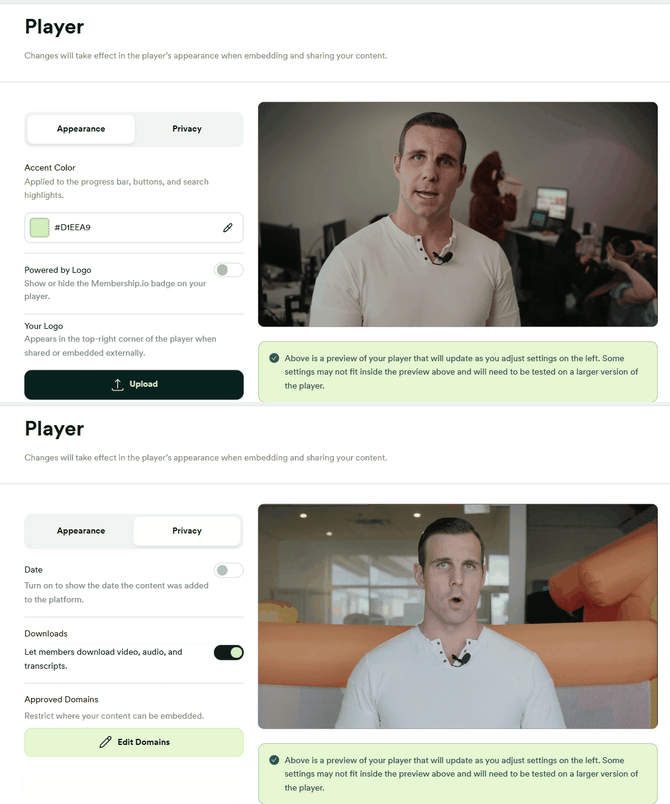
Below is a quick view of everything on it. There are only two tabs:
If you see six tabs instead (Controls, Timeline, Video, Info, Appearance, Privacy), your Hub is still on Player V1. This article isn't about your player; see Customize your Player Settings instead.
Step 2 - See what changed in each tab
What's gone: Controls, Timeline, Video, Info
These four tabs no longer exist. Every toggle they held is ignored on Player V2, including Autoplay, Show Captions by Default, Force Best Quality, Play on Open, the pause overlay, and Chapters. Your Hub Settings > Privacy > Download Options also no longer controls the player's Download menu.
IMPORTANT: If you were previously turning on Force Best Quality to control video quality, that control is gone. See Step 3 for where quality is set instead.
Appearance
- Accent Color: only changes the player's color on iframe embeds. Inside your Hub, the player always uses your Hub's theme color instead.
- Powered by Logo
- Your Logo: iframe embeds only. NOTE: the field's own description says it appears in the top-right corner, but on every account checked so far it actually renders top-left.
Privacy
- Date: show or hide when content was added to the platform.
- Downloads: let members download video, audio, and transcripts. Your file-level setting takes priority over this team-level one.
- Approved Domains: restrict where your content can be embedded.
🔥 TIP! Just like on Player V1, turning off Date is useful for "evergreen" content you don't want to look stale.
NOTE: Unlike Player V1, there's no Save button on either tab. Changes you make here appear to apply immediately.
Step 3 - Find the rest of the controls in the player itself
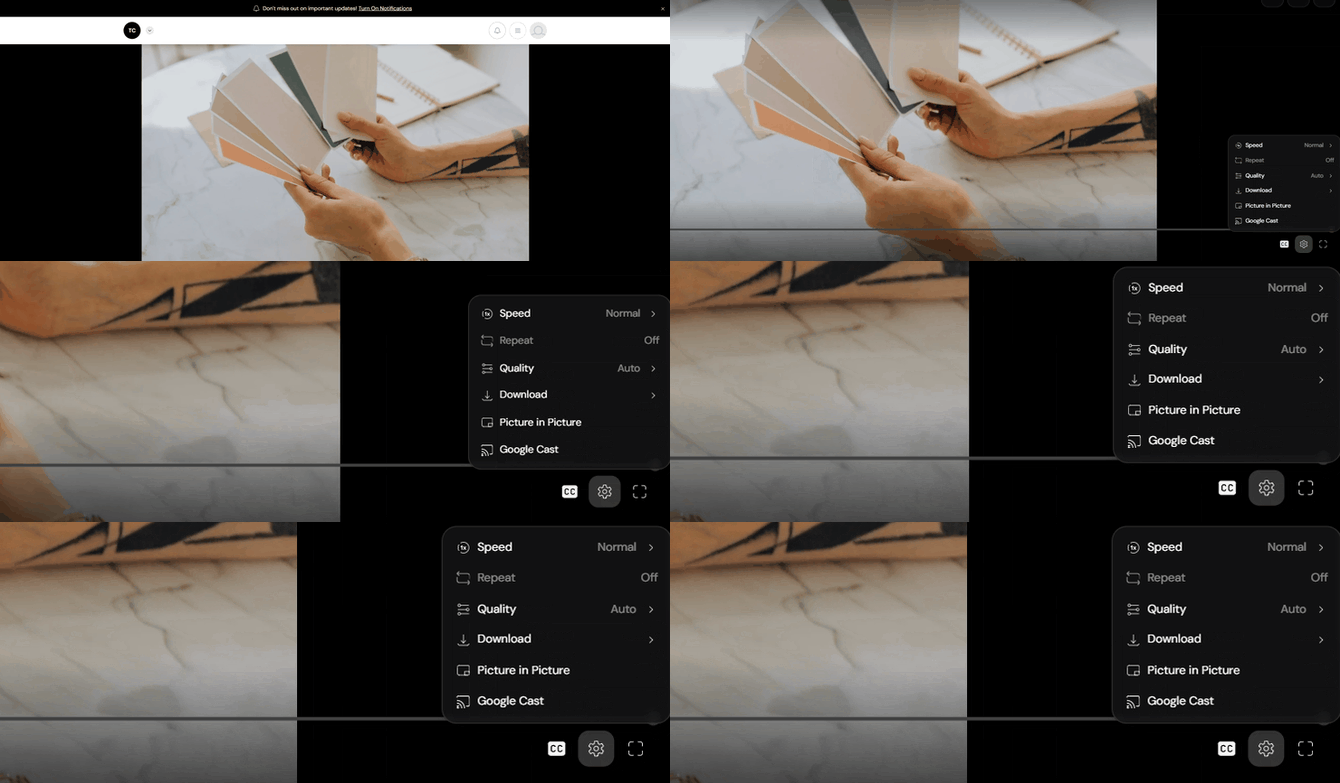
On Player V2, several controls move from your admin-side Player page into the player's own Settings menu, where each member sets them individually:
- Speed: 0.5 to 2, default Normal
- Quality: Auto, or a fixed value from 234p to 1080p
- Download: separate links for Video, Audio, and Transcription, when downloads are allowed
- Repeat: cycles Off, All, One, inside a playlist
- Picture in Picture
- Google Cast: shows as AirPlay instead if you're using Safari
-
Members can also use keyboard shortcuts while the player is focused:
| Key | Action |
|---|---|
Space or K |
Play or pause |
J / L or ← / → |
Skip back or forward 5 seconds |
↑ / ↓ |
Volume up or down |
M |
Mute |
C |
Toggle captions |
< / > |
Decrease or increase speed |
0–9 |
Jump to that percentage of the video |
R |
Replay |
F |
Fullscreen |
I |
Picture in picture |
On mobile
Tap the player once to show the controls, tap again to pause. Double-tap the left or right edge of the screen to skip back or forward 5 seconds, the same jump as the J / L shortcuts above.
NOTE: The Settings menu looks different on a phone too. Captions and Replay move into it instead of sitting in the main control bar.