
🧰 What You Will Need:
Set your Hub to allow members to chat privately within it.
Members can now attach files, images, and videos to direct messages using the same attachment options available in the comment composer.
Step 1 – Start a conversation
In the Hub, open the Member Directory and find the member you want to message.
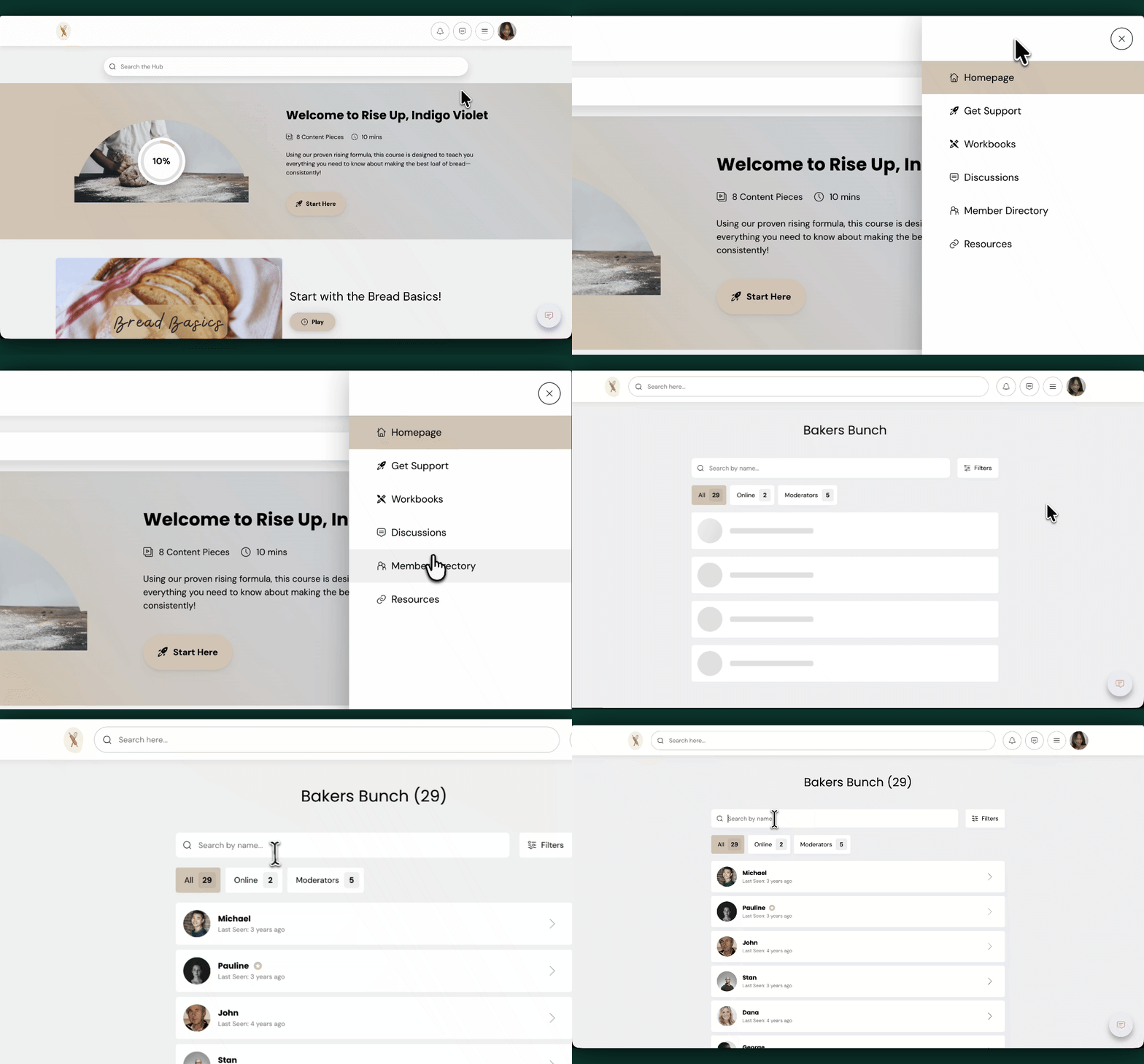
Once found, click on their profile and click 💬 Message.
Step 2 – Add an attachment to your message
Click the attachment option next to the Send button, then choose whether to add a file, image, or video.
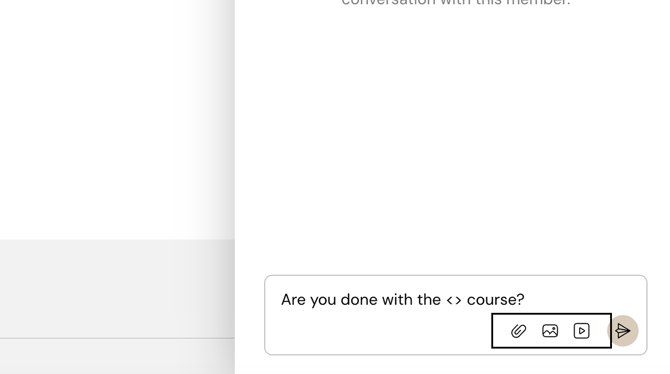
- Add (file) attachment – Upload a supported file
- Insert image – Upload an image from your device
- Add video – Paste a valid YouTube or Membership.io video URL to embed a playable video in your message
Once ready, press Enter or click the Send button.
TIPS:
- You can send an attachment without adding any text. The recipient will see it in their notifications as “Sent an attachment.”
- Press Shift + Enter to start a new line without sending your message.
Supported attachment types
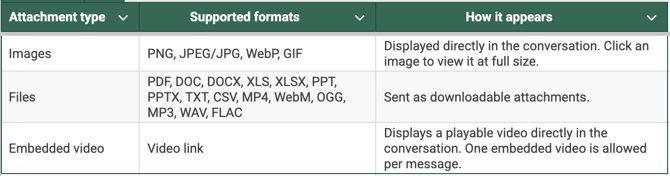
Attachment limits
Keep the following limits in mind:
- Up to 10 attachments per message
- Maximum 100 MB per file and per message
- Message text can contain up to 10,000 characters
Troubleshooting
Attachment won't upload
If a file exceeds the size limit or isn't a supported file type, an error appears before the message is sent. Reduce the file size or choose a supported file format, then try again.