
🧰 What You Will Need
- A Hub
- A custom email host for your hub's emails
- Access to your email host provider
(Gmail) Members are getting a “Server Error” message
Check the following:
- Make sure your Username and Password are correct. Your Username must be the same Gmail address you used to generate the App Password.
- If you recently changed your Gmail password, regenerate your App Password. Google automatically invalidates your app-specific passwords when you change your main Gmail password.
- Generate a new Google app password (see Step 3 of this article), and replace the old one in your Hub's email settings (Hub > Settings > Emails).
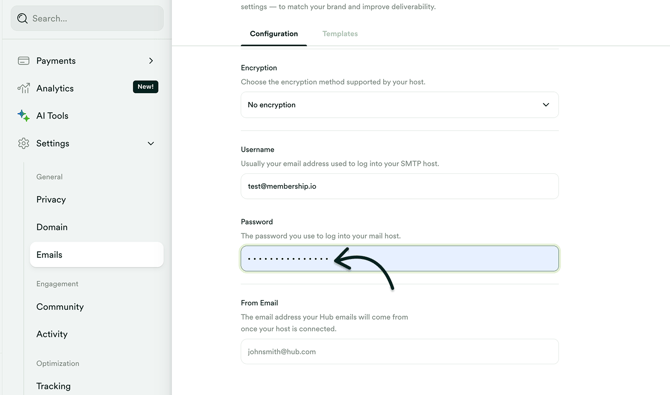
- Generate a new Google app password (see Step 3 of this article), and replace the old one in your Hub's email settings (Hub > Settings > Emails).
Once updated, Save your settings and send another test email to confirm everything is working.
Members with Hotmail or Outlook addresses aren't getting emails
Some users may experience deliverability issues due to policy changes on Microsoft's side.
This affects email addresses that end in @hotmail, @outlook, @live or @msn, including country versions such as hotmail.co.uk or outlook.co.nz.
Signs this is affecting your Hub:
- Members with these addresses tell you they didn't get a welcome email, post notification or announcement.
- If you use a Custom Host, bounce notices that say "Message blocked" arrive in your own inbox for these addresses.
What still works: members keep their access to your Hub, and your posts and announcements are still visible in the Community even when the email notification doesn't arrive.
Alternatively, you may also try a different provider like Gmail or SendGrid: