
What can I use this for?
If you want people to learn more about what your Hub offers before purchasing access, you can provide free content or a public Hub page.
For example, you might offer an introductory video, sample content, guides, checklists, or downloadable resources. This lets visitors understand what you offer and decide whether to purchase access to your full content.
Membership.io supports two approaches:
- Create a new Hub that requires visitors to register before they can access your free content and resources. This gives you a way to collect names and email addresses for marketing purposes, while also guiding visitors to the paid Hub when they’re ready to continue.
- Offer a "Free" plan in your existing Hub and use Segments to control which content non-paying and paying members can access.
Option 1 – Create a separate Hub
You can use this as a public-facing introduction to your offering and direct visitors to your paid Hub when they're ready to purchase access.
NOTE: This option requires the Grow plan or higher,since you'll be needing more than one Hub.
Step 1 – Create a new Hub
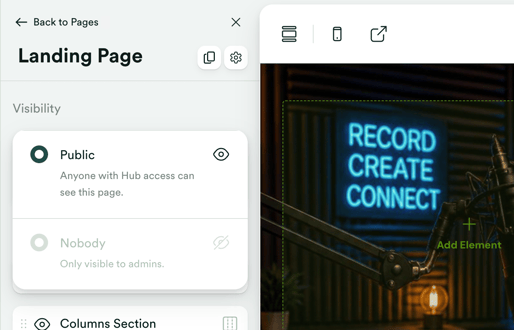
Create a new Hub.Click Customize to enter the Hub editor, set your homepage as a Public page, and start customizing it. For the full customization guide, see Mastering how to customize Hub sections.
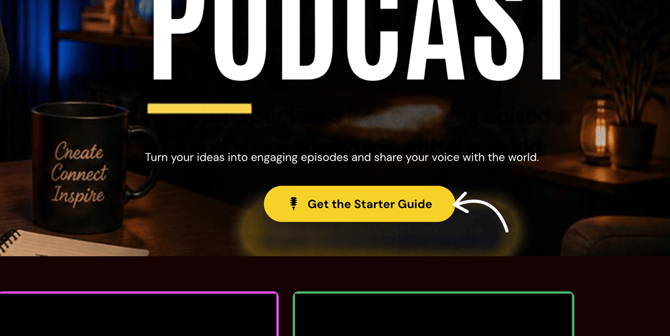
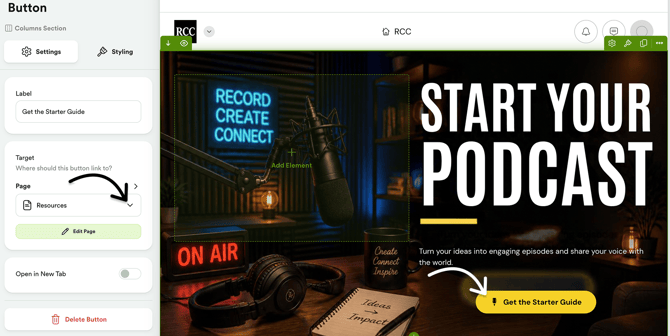
You can add a button in your homepage that links to your content page.
Step 2 – Set up your content page
Navigate to Content and start adding your content playlists as free resources. You can create new Playlists and upload content to it, or add them straight from your Library. Make sure to publish them, or they won't be visible to your members later when they sign up.
Create a custom page, such as "Resources" or "Content," and add your Playlists from the Content section.
Step 3 – Enable Hub registration
Enable the Hub Registration page so your members can register first before getting access to your Hub. Adding registration helps filter out people who aren't genuinely interested in your content and use the registration details to send promotional emails when needed.
Customize the registration page to match your Hub’s design and the experience you want to create.
Step 4 (Optional) – Direct visitors to your paid Hub
Add a separate button or link that takes visitors to the registration or payment flow for your paid Hub.
For example:
Explore for free > Learn more > Purchase access
This lets visitors experience some of what you offer before deciding whether to purchase access to the rest of your content.
Complete setup flow
Private Hub > Public homepage > Free registration > Free content and resources > Link to paid Hub > Registration and payment > Full access to paid exclusive content
Step 5 – Finalize and share
Complete your Hub setup by finalizing the design and features, then update your page URLs with a slug or custom domain if needed. If you need help customizing sections, see: Mastering how to customize Hub sections.
Once done, you can start sharing and promoting your Hub!
Option 2 – Offer a Free plan in your existing Hub
If you want to keep your free and paid content in the same Hub, you can offer a Free plan and use Segments to control access to your content.
Visitors can register for the Free plan and access the sections you've made available to them. You can then restrict other sections to members who have the appropriate paid access.
Step 1 – Create a Free plan
Set up a Free product in your Hub so visitors can register without purchasing a paid plan. Do that by going to Payments > Pricing.
Step 2 – Add a free content page
Make introductory content and resources available to Free members, such as a welcome pack, introductory videos, sample lessons, guides and checklists, and more.
Step 3 – Use Segments to control free and paid content
Use Segments to determine which members can view specific Hub sections.
This allows Free members to access your introductory content while keeping paid content available only to members who meet the conditions of the appropriate Segment.
For detailed instructions, see Using Segments to control Hub section visibility.
Complete setup flow
Free plan > Free content > Purchase a paid plan > Paid content
Which approach should I use?
Choose the approach based on how you want visitors to interact with your content:
| Approach | Best for |
| Separate Hub | Letting anyone explore free content and resources by simply performing a free sign-up, while keeping your full offering in a separate Hub |
| Free Plan + Segments | Letting visitors register for free and access selected content in the same Hub before purchasing additional access |